 Worksheets
Personal expense tracking
Know where your everyday money went.
Turn a transaction list into something useful. Review money out, organise purchases into categories and find the spending you want to understand.
Opens Worksheets Personal. Choose Create account on the next screen.
- Start with your own records
- No live bank connection required
The everyday problem
The statement has the numbers. You need the context.
A long statement can hide a simple question: how much went on food, travel or other everyday expenses? Merchant descriptions are not always easy to recognise, and a refund or a transfer is not the same as a new purchase. Understanding past spending starts with a clean record, not an automatic judgement about whether a purchase was good or bad.
A clearer way to manage it
How Worksheets helps
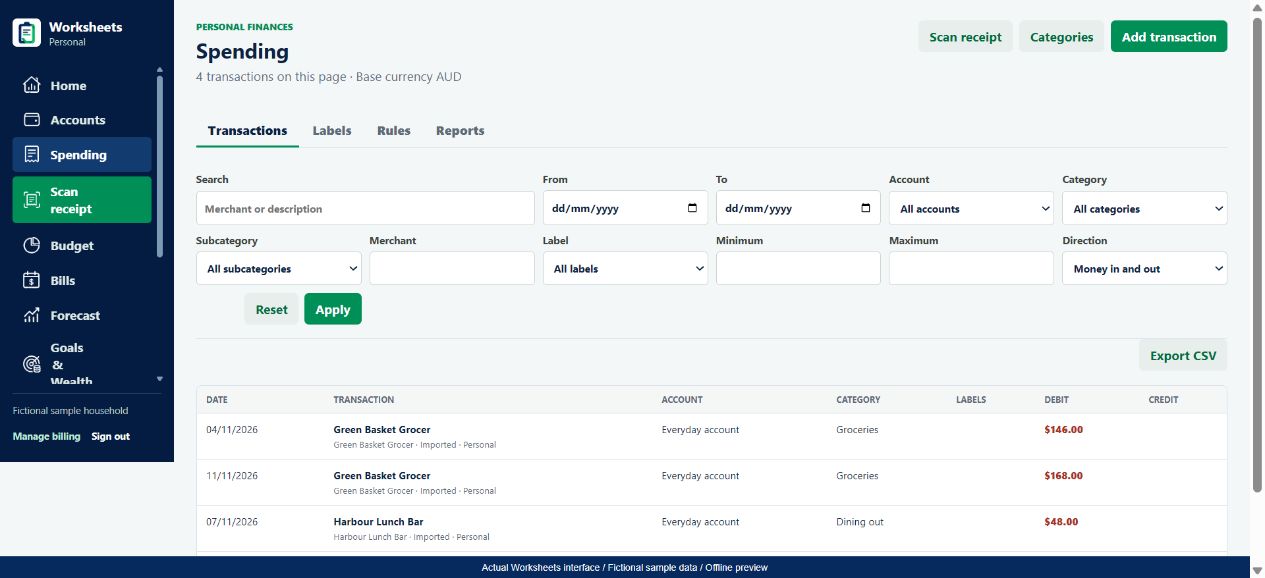
In Spending, Worksheets Personal shows transactions with separate debit and credit columns, an account, a category and any labels. You can search and filter the records, correct their details and export matching transactions to CSV. Categories describe the type of spending; labels provide another way to group records for a purpose you choose.
- Find the purchases behind a category total rather than guessing from your current balance.
- Keep money coming in separate from money going out while you review a statement.
- Use recorded spending as the starting point for a realistic budget.
From the app to your everyday routine
Three practical steps
Bring in your records
Use Accounts to import a supported statement file, or add a transaction manually in Spending. Check the import preview for missing rows, incorrect dates and duplicate entries before confirming it.
Make the categories meaningful
Review the merchant and choose the relevant category, such as Groceries, Dining out or Transport. Use labels when a purchase also belongs to a project or event; a label is not another debit.
Answer one question at a time
In Spending > Transactions, set your date range and filter by category, account or merchant. Open a record to correct it. Export CSV when you need the matching records outside the app.
A worked example
Four purchases explain A$398 of spending
Fictional Australian-dollar figures - not personal financial advice
A fictional household imports four November purchases into its Everyday account. Two grocery visits belong to the same category, even though they are different transactions. The lunch and train costs stay in their own categories. The example has no income, refunds or transfers, so its outgoing total is simply the sum of the four debits.
| Purchase | Category | Money out |
|---|---|---|
| 4 Nov - Green Basket Grocer | Groceries | A$146 |
| 11 Nov - Green Basket Grocer | Groceries | A$168 |
| 7 Nov - Harbour Lunch Bar | Dining out | A$48 |
| 9 Nov - City Travel | Transport | A$36 |
A$146 + A$168 + A$48 + A$36 = A$398
Filtering to Groceries returns A$314 of purchases. That is recorded spending, not the household's complete cost of living. Missing cash purchases would need to be added before drawing a broader conclusion.
Use the numbers thoughtfully
What to keep in mind
A useful tool makes its limits clear. Check the underlying records before making a financial decision.
- Statement extraction and categorisation can need correction. A PDF layout or unclear merchant description can produce incomplete or inaccurate results.
- Scanning a receipt does not mean a separate bank debit should be created again. Check existing records to avoid counting the same purchase twice.
- An imported record is not proof that an account balance is current, and a tax-treatment label is not tax advice.
Good questions
Expense tracking FAQs
For independent Australian money guidance, visit MoneySmart: track your spending. This is a helpful resource, not an endorsement of Worksheets.
Is expense tracking different from budgeting?
Yes. Expense tracking describes purchases already recorded. Budgeting sets a plan and compares those purchases with an allowance. You can track spending first and add budgets once the categories make sense.
Can I record cash spending?
You can add a transaction manually and choose the appropriate account and category. Keep the account record consistent so the cash purchase is not also counted as a separate card purchase.
Can I fix a merchant name or category?
Yes. Open the transaction and review its editable details. Correcting an entry is better than adding a second transaction for the same purchase.
Will every bank PDF import perfectly?
No. Statement formats and scan quality vary. Review the preview, dates, debit and credit direction, and row count. Use another supported format or manual entry if a file is not read reliably.
One part of your bigger picture
Keep building your money routine
Explore all Worksheets Personal features or compare plans and pricing.
Worksheets Personal
A clearer picture starts with your next step.
Bring your records together and build a money routine that makes sense to you.
Choose Create account after opening the app.